 NL
NL
A reliable journey is more than just good planning; it also depends on the technology you use. For many travellers, this means a smoothly functioning navigation app. Correctly applying settings and updates is essential for resolving issues such as GPS signal loss and app errors. In this article, you will learn how to troubleshoot common technical problems on the go.
What to do in case of GPS signal loss?
Signal loss is one of the most common frustrations during a road trip. Your location jumps around, the route doesn’t load, or the app indicates that no GPS signal is available. The cause often lies with your device’s connection to navigation satellites. There are several practical steps you can take to restore this.
Check your surroundings and device
The most direct cause of signal loss is a physical blockage. GPS signals require a clear line of sight to the sky. Are you driving through a densely wooded area, a tunnel, or between tall buildings? If so, the signal will be temporarily weaker. Even a coated, heat-reflective windscreen in a modern car or camper van can disrupt reception. What can you try immediately?
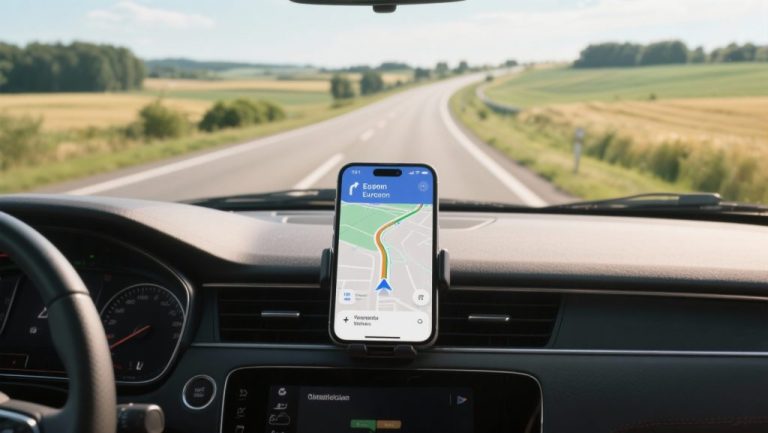
- Clear view: Ensure nothing is blocking your smartphone or navigation system. Place the device in a holder on the dashboard instead of in a jacket pocket or deep storage compartment.
- Stop for a moment: Give the device a few minutes to re-establish its connection with the satellites. Pull the car over in an open spot. This helps the system to re-determine your location.
- External antenna: For vehicles with a windscreen that blocks signals, an external GPS antenna can be an effective solution. You place this on the roof or on the inside near the mirror for much better reception.
Optimise your device’s settings
Sometimes the cause lies not externally, but within your device’s software settings. Navigation apps require specific permissions and settings to function optimally. Check the following points on your smartphone:
- Location access: Go to your phone’s settings, find the relevant navigation app (such as Waze or HERE WeGo), and set location access to \”Always allowed\”. This ensures the signal remains active when the app is running in the background.
- High accuracy: In your operating system’s location settings, select the \”High accuracy\” mode. This allows the device to use Wi-Fi and mobile networks in addition to GPS to determine your position.
- Disable battery optimisation: Power-saving features can restrict the operation of GPS apps to conserve battery. Disable battery optimisation for your navigation app to ensure it has continuous access to the GPS hardware.
‘ Outdated software, lack of memory, or conflicts with other apps often cause crashes. ’
How to fix issues with crashing apps?
An app that freezes or suddenly closes is not only annoying but can also be unsafe if you’re approaching an important turn. Outdated software, lack of memory, or conflicts with other apps often cause crashes. With a few simple steps, you can significantly improve the stability of your navigation apps.
Ensure up-to-date software and sufficient space
Developers of apps like Waze and HERE WeGo regularly release updates to fix errors and improve performance. Therefore, before you set off, check that you have installed the latest version of the app and your phone’s operating system.
- App updates: Open the app store on your phone and check for updates for your navigation apps. Recent updates may have resolved known issues. For example, GPS problems in earlier versions of Google Maps for Android Auto were fixed in later versions.
- Clear cache: Stored temporary files (cache) can cause problems over time. Go to your phone’s app settings, select the navigation app, and choose \”Clear cache\”. This removes unnecessary data while retaining your saved routes and preferences.
- Restart the device: This clears the working memory and often immediately resolves minor software errors. Restarting your phone or navigation system clears the working memory and often immediately resolves minor software errors.
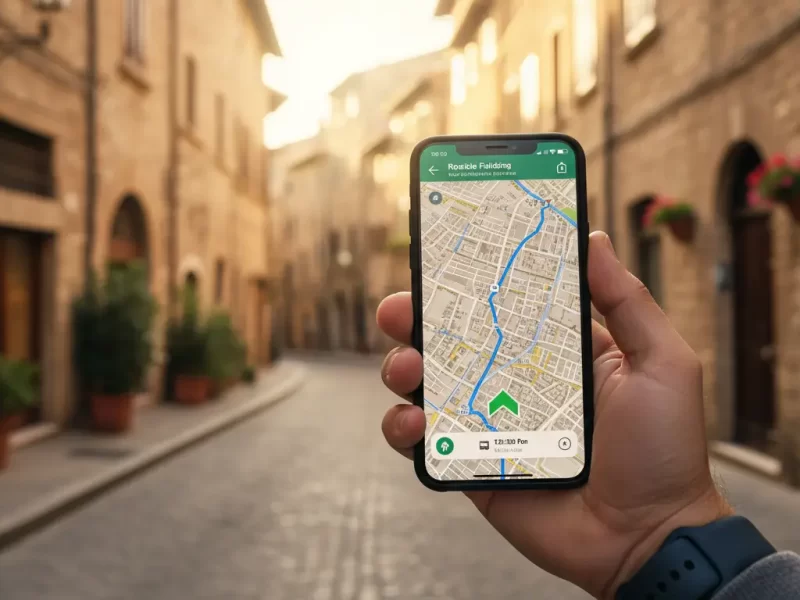
Why does the app’s route deviate?
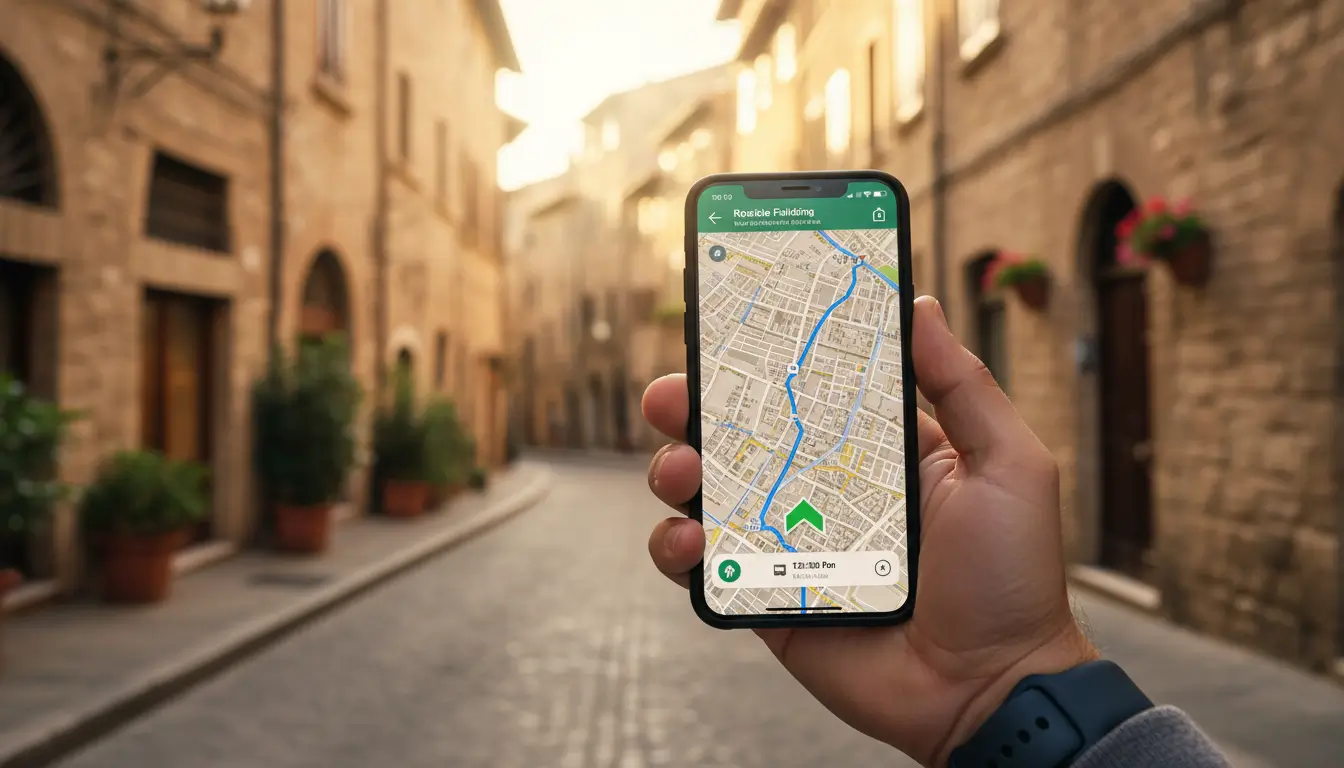
You follow the directions, but the app sends you an illogical way or the estimated arrival time is incorrect. Deviating routes can have multiple causes, ranging from your route settings to outdated map data.
Check route preferences
Modern navigation apps offer various options to personalise your route. An incorrectly set preference could be the reason for an unexpected detour. Check the following options in the app’s settings:
- Avoidance options: Have you accidentally set the app to avoid toll roads, ferries, or motorways? This can lead to significantly longer and more complex routes.
- Vehicle type: Some apps, like HERE WeGo, offer the option to set a vehicle profile. A route for a lorry or camper van can differ significantly from a route for a passenger car.
- Map data: Ensure your offline maps are recently updated to include the latest roads and traffic situations. This provides reliable and current directions.
Good preparation is more than just mapping out the route. By also checking and optimising your digital tools, you ensure a smooth and relaxed journey. On the Traveler Tips website, you’ll find many more articles on smart planning, useful tools, and preparing for your ideal road trip. Discover our guides and make your next journey even better.
Frequently asked questions
Optimise location settings by selecting ‘Always allowed’ and ‘High accuracy’, and disable battery optimisation for navigation apps. Ensure your navigation app has software updates and stand still when starting to optimise satellite connection. Consider an AGPS reset via an app like “GPS Status & Toolbox” or an external antenna for camper vans with coated windscreens.
Reliable offline navigation options include pre-downloaded maps in apps such as Google Maps, OsmAnd, or Maps.me, which provide basic navigation and POIs even without mobile data or a GPS signal. Traditional paper road maps and topographical maps remain essential as a backup, especially in remote areas. For longer journeys, you can opt for special outdoor GPS devices (e.g., Garmin) with pre-loaded maps that work offline. Furthermore, a compass combined with a paper map offers completely signal- and power-independent orientation.
First, check for software updates for your navigation app. Then, optimise location settings by setting them to “Always allowed”, disabling battery optimisation, and selecting “High accuracy”. Ensure you have a clear view of the sky and avoid obstacles. Finally, stand still to allow your device to find satellites and check your battery and data communication.
To optimally prepare your navigation apps and devices for areas with varying network coverage, update the software of your navigation apps and optimise location settings by choosing ‘Always allowed’ and disabling battery optimisation. Ensure a fully charged battery and download offline maps before your journey. Consider an external antenna for vehicles with coated windscreens and use assisted-GPS (AGPS) for faster location references when data is available.
When digital tools fail, there are still various alternative methods to find your route. For example, you can use a traditional map and compass. Additionally, ask local residents for directions, as they often know the best or most efficient routes. Also, pay attention to environmental factors such as the sun or landmarks to orient yourself.