
 NL
NL
Integrating navigation apps with travel planning ensures a smooth holiday in which routes, sights, hotels and public transport fit together seamlessly. By using tools such as Google Maps and other planners together, you can organise everything in advance and keep an overview while you travel. Find out how to do this.
Why integrate navigation with travel planning
If you plan your own holiday, you want to stay in control of the whole trip. You want routes, stopovers, petrol stations, charging points and public transport to be correct. Navigation apps offer this information in real time, but when you combine them with your travel planning, you save time and stress on the road. You can decide in advance where you will stop, how long you will drive for and what alternatives are available if there are traffic jams or roadworks.
Integrating navigation with travel planning also helps you travel in a multimodal way. Think of combinations of car, train and bike. Google Maps, for example, shows public transport connections, cycle routes and footpaths alongside driving routes. This makes it easy to plan a trip where you leave the car at a park-and-ride and continue by train.
‘ Ideal for remote areas, walking holidays and cycle routes. ’
Popular apps for integrated travel planning
Most navigation apps work well with planning tools. Here are the main options for travellers who like to plan their own trips:
- Google Maps: offers real-time traffic, alternative routes, sights, hotels and petrol stations. You can download routes for offline use and add multiple stops. Works for driving, cycling, public transport and walking.
- Waze: focuses on car journeys, with live reports from other users about traffic jams, speed cameras and incidents. No offline mode, but great for dynamic traffic situations.
- Maps.me: fully offline navigation based on OpenStreetMap. Ideal for remote areas, walking holidays and cycle routes.
- HERE WeGo: offline maps and public transport information in more than 1300 cities worldwide. Handy if you combine car and public transport.
- TomTom GO: accurate maps, lane guidance and charging stations for electric cars. Free version with limitations, paid version with offline maps.
How to integrate navigation with your travel planning
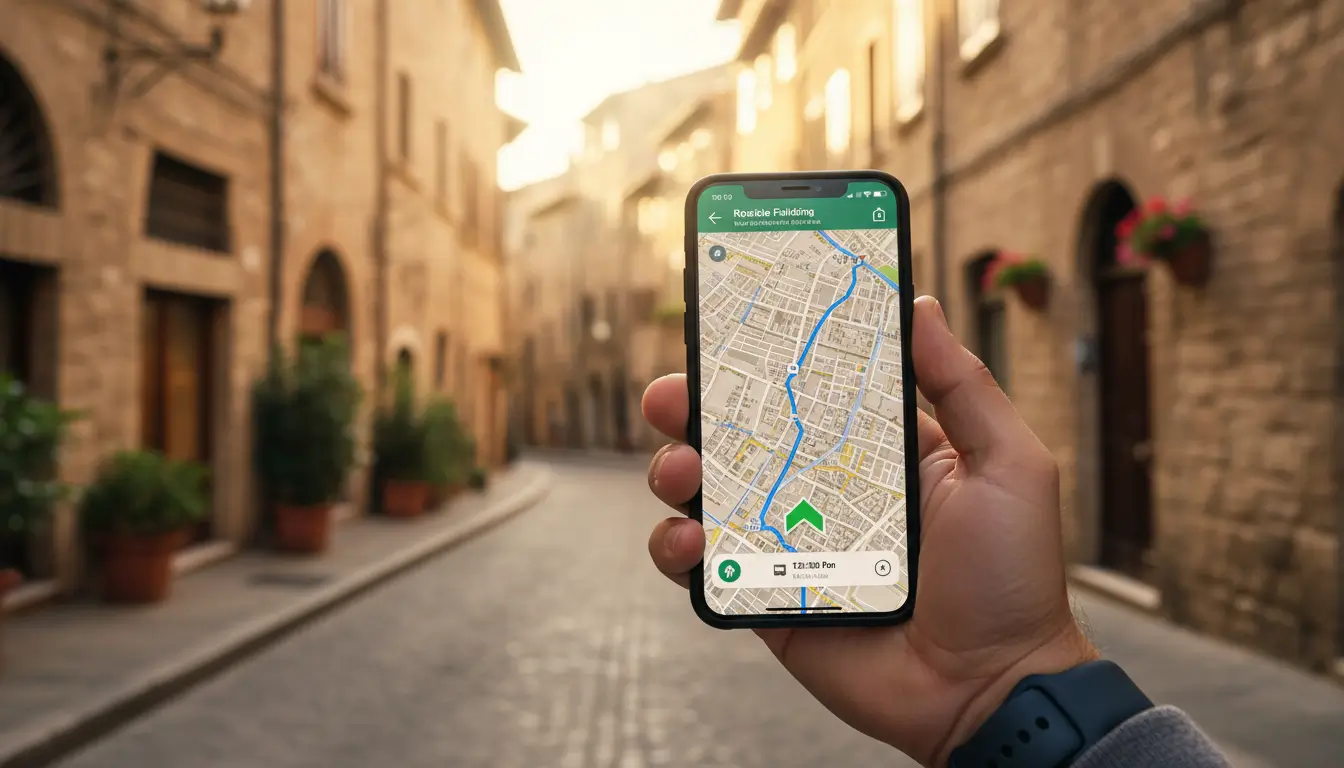
Start with your destination and the stops in between. In Google Maps, add several destinations by clicking ‘Add stop’ in the route planner. This lets you see travel time and distances straight away. Download the route for offline use if you will be travelling through areas with poor network coverage.
Then use a spreadsheet or planning app to work out your route in detail. Note down times, distances, petrol stations and overnight stays. Google Maps can help you find hotels and sights along your route using the search function. You then add these locations to your list of stops.
For multimodal trips, switch between modes of transport. In Google Maps, you can choose train, bike or car as your mode. Compare travel times and costs. Some routes are faster or cheaper by train, while for other legs it is better to take the car.
Offline preparation
Download maps of your destination in advance. This saves mobile data and ensures you still have navigation in areas without signal. In Google Maps, open the menu, select ‘Offline maps’ and choose the area. Maps.me and HERE WeGo offer full offline maps for large regions.
Avoiding traffic and jams
Use Waze while driving for up-to-date traffic reports. Start your journey in Google Maps with your planned route, but open Waze for real-time updates if you expect congestion. Waze often provides clever detours that Google Maps does not immediately show.
Driving electric and charging points
Plan your route with charging breaks if you are driving an electric car. Google Maps and TomTom GO show charging stations along your route. Add these as waypoints and factor in charging times. This way you avoid unpleasant surprises on the road.
Combining apps for optimal planning
No single app does everything perfectly. So combine the strengths of different tools. Google Maps is useful for broad planning and multimodal trips. Use Waze while driving for traffic updates. Maps.me is your backup in remote areas.
Travellers on forums recommend double-checking routes. Sometimes the expected travel time in Google Maps differs from reality. Waze often gives a more realistic picture during rush hours. For international journeys, it is a good idea to check local apps, such as Flitsmeister in the Netherlands for speed checks.
‘ A five-hour drive calls for at least one longer break. ’
Tips for smooth integrated planning
Start with your route and work towards the details from there. First add your main destinations, then your stopovers, petrol stations and sights. Allow for breaks and travel times. A five-hour drive calls for at least one longer break.
Share your route with your travel companions via Google Maps. This way, others know where you are and can follow the planning. This is useful for group trips or if you are travelling with several cars.
Test your route at home in advance. Check whether all stops are correct and whether the estimated travel time is realistic. Make adjustments where necessary and save alternatives. This way you are prepared for unexpected roadworks.
On Traveler Tips you will find much more about route planning, destinations and preparation. Discover practical articles for road trips, information on traffic conditions in Europe and tips for multimodal travel. Visit the website for reliable travel advice.
Frequently asked questions
Navigation apps help you prepare detailed routes by letting you search for and add stopovers such as petrol stations, restaurants, hotels and sights in advance. In apps like Google Maps, you can enter multiple stops, optimise the order and view alternative routes if needed. Many apps also show reviews, opening times and busyness information for attractions, so you can better plan when to stop where. By downloading maps for offline use, you can continue to follow this detailed route with all its stops even without a stable internet connection.
You can link navigation apps to your travel planning by entering routes with stopovers in advance and downloading maps for offline use, so you can navigate smoothly even without internet access. While travelling, apps like Google Maps and Waze optimise your route with real-time traffic information, alternative routes in case of congestion and warnings about incidents. By planning multimodal routes (car, public transport, cycling, walking), you can see the best option and transfer times for each leg of the journey. Finally, you can integrate charging points, petrol stations and sights into your route, so you do not end up facing any unpleasant surprises.
During your preparation, use Google Maps or Maps.me to plan your main routes and save interesting places, restaurants and viewpoints as favourites. While on the road, zoom the map out a little and use the search function with terms such as “sights”, “viewpoint” or “museum” along your current route. Combine a real-time app like Waze (for traffic) with Google Maps (for points of interest), so that when you have to take a detour you still see new but relevant stops. Build extra time into your daily schedule, so you can deviate spontaneously when the app suggests unexpected but appealing places.
Crucial features include clear turn-by-turn navigation with real-time traffic information and automatic rerouting in case of congestion or road closures. It is also important to be able to add and edit stopovers easily, including points of interest such as petrol stations, sights and charging points. Offline maps and routes downloaded in advance ensure you can keep navigating without any problem in areas with poor coverage or expensive data. Finally, it helps if you can share routes with travel companions and plan different modes of transport (car, public transport, walking, cycling) in a single app.
Download offline maps in your navigation app (for example Google Maps or Maps.me) in advance for all areas you will visit. Save your addresses, reservations and important stops as favourites or in lists so you can access them without internet. Test offline route planning briefly at home so you know how the app behaves without a connection. Consider installing a second navigation app as a backup, in case one app fails or does not have coverage.